Network Graph
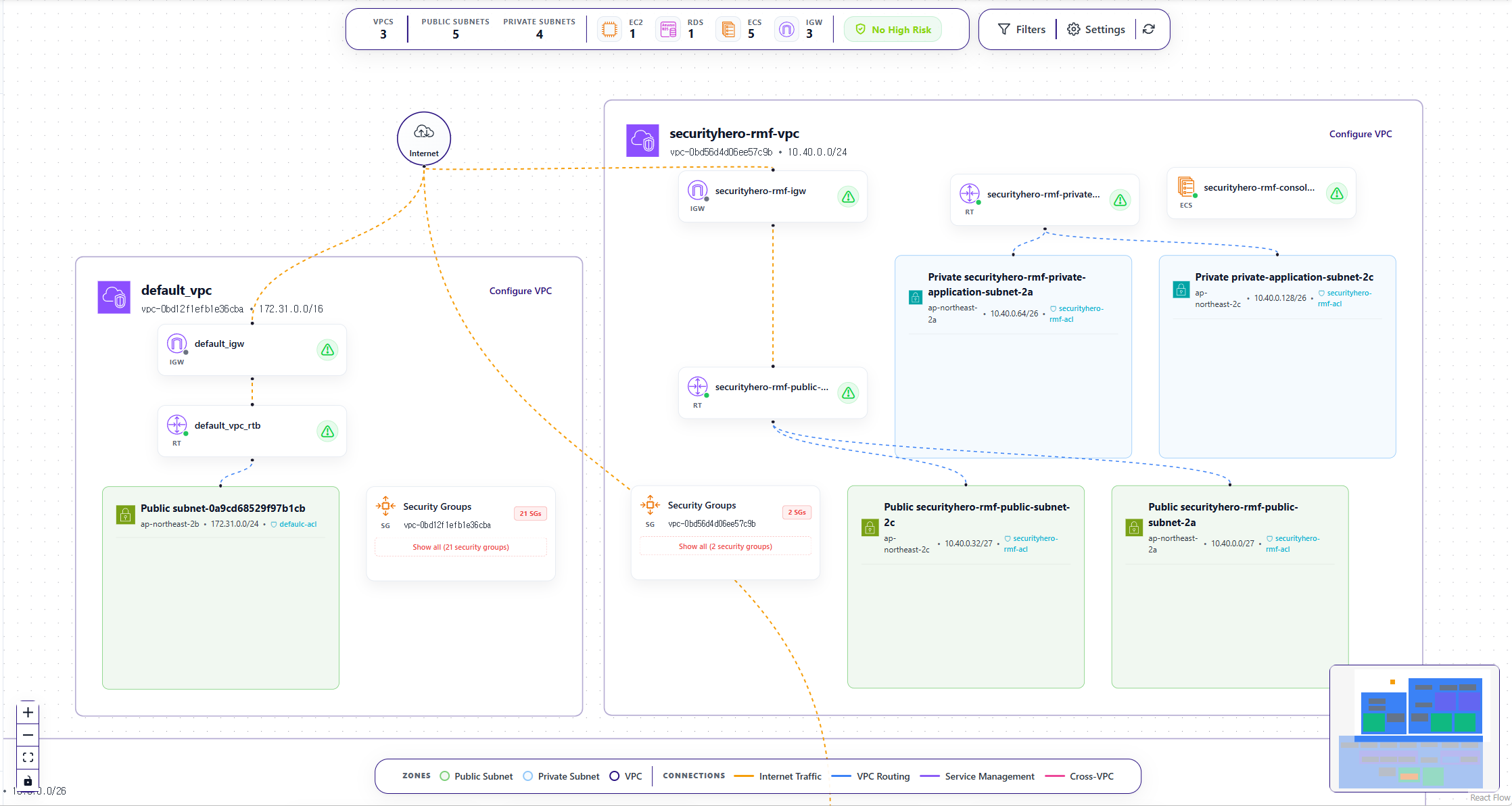
The Network Graph visualizes the network-related assets from your scanned AWS environment, organized around VPC zones.
You can review VPC/Subnet structure, connections between assets (edges), and risk status all in one screen — and drill into detailed asset information and communication paths for specific assets.
The graph is built from network asset data generated after an Asset Synchronization is run.
1. Layout Overview
1.1. Top Summary Bar
The top bar shows a summary of the assets currently included in the graph.
- VPC / Public Subnet / Private Subnet counts
- Key resource counts (e.g., EC2, RDS, ECS, IGW)
- Risk status summary badge (e.g.,
No High Risk)
1.2. Filters & Settings
The controls in the upper right let you adjust what is displayed in the graph.
- Filters
- Search by asset name or ID
- Resource Type filter
- Risk Level filter (
Very High,High,Moderate,Low,Very Low)
- Settings (Topology Settings)
- View current node count, network edge count, and virtual edge count
- Enable
Enable groupingand threshold-based grouping - Toggle
Show virtual edgeson or off
- Refresh button
- Re-renders the graph based on the latest sync state
1.3. Graph Legend
The graph legend at the bottom explains what each visual element in the graph represents.
2. Graph Area
2.1. VPC-centric Visualization
The graph is organized around VPC zones, with Subnets and resources placed within each zone.
- Public Subnets and Private Subnets are clearly distinguished.
- VPC boundaries and Subnet zone colors allow you to quickly understand the logical network structure.
2.2. Graph Hierarchy
The Network Graph is structured based on AWS network architecture, with the following layers:
-
Root
- Internet
- VPC Peering
- Transit Gateway
-
VPC
- Internet Gateway
- Route Table
- Load Balancer
- ECS Service
- Subnet
-
Subnet
- EC2 Instance
- RDS Instance
- NAT Gateway
- ECS Task
- Security Group
2.3. Nodes
Each node in the graph represents an AWS network asset.
- VPC Zone – AWS virtual network boundary
- Subnet Zone – Network segment (Public / Private)
- Resource Node – Running and network assets such as ECS, ECS Tasks, RDS, NAT Gateways, etc.
2.4. Edges
The legend at the bottom (Connections) describes the meaning of each edge color.
- Yellow: Internet Traffic – Communication paths through an Internet Gateway to the internet
- Blue: VPC Routing – Routing-based network connections between resources within the same VPC
- Purple: Service Management – Management/control relationships between service components (e.g., ECS Service ↔ ECS Task)
- Pink: Cross-VPC Communication – Inter-VPC connections via VPC Peering or Transit Gateway
3. Asset Detail Panel
Clicking an asset node in the graph opens a detail panel.
3.1. Basic Info & Risk Info
- Asset identification: Asset ID, Name
- Overall Risk Level
- Security Findings Overview
- This data is based on results generated after a Risk Assessment has been run.
3.2. Asset / Network Details
- Asset Details: Instance Type, Resource Type, Region, etc.
- Network Details: Private IP, Public IP, VPC ID, Subnet ID, etc.
- Security Groups list
3.3. Path Analysis
You can analyze network connection paths relative to the selected asset.
- Path From – Network paths originating from the selected asset
- Path To – Paths through which the selected asset can be reached
This enables analysis such as:
- Tracing access paths from the internet to internal assets
- Analyzing cross-VPC communication flows
- Understanding connection paths based on Security Group and routing configurations
4. How to Use the Network Graph
- Get a complete picture of your network structure (VPCs/Subnets) and asset connections at a glance
- Use risk-level filtering to quickly identify assets that need priority review
- Connect path analysis (Path From/To) for individual assets to reduce root cause investigation time