Assets
The Assets page is where you view your AWS assets and manage your synchronization policies.
The page consists of two tabs — Asset Inventory and Synchronization — and provides asset information based on the most recent synchronization results.
Assets shown in Asset Inventory are updated based on the latest synchronization (scan) performed in the Synchronization tab.
The Assets page consists of the following two tabs:
- Asset Inventory – Browse your AWS assets based on the latest scan results
- Synchronization – Configure scan scope and manage synchronization runs
1. Asset Inventory Tab
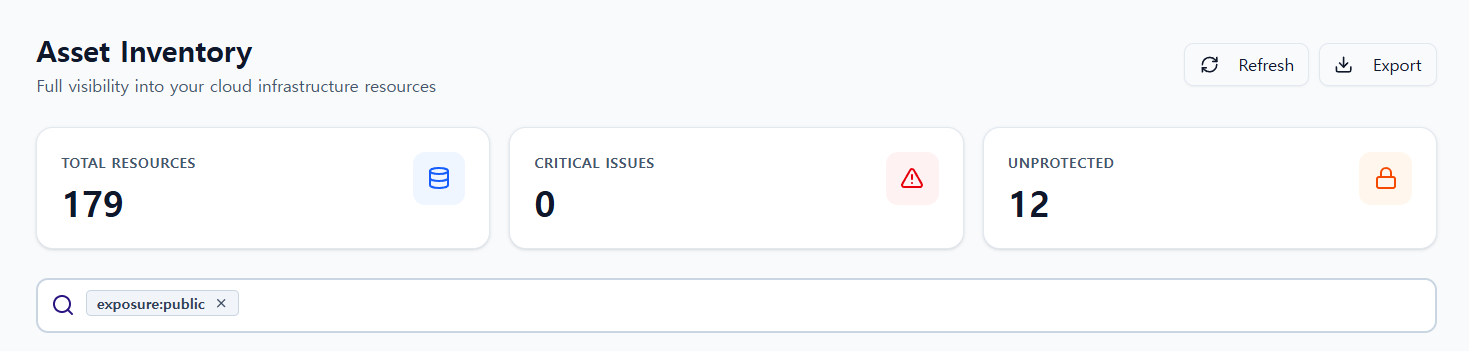
Asset Inventory shows the current state of AWS assets discovered during the most recent synchronization.
Each asset includes the following information:
- Resource type (EC2, RDS, S3, etc.)
- Region and network information
- Exposure status (Public / Private)
- Risk assessment results (when a Risk Assessment has been run)
1.1. Key Metric Definitions
The summary metrics at the top of Asset Inventory are calculated as follows:
- CRITICAL ISSUES: The number of assets classified at the highest risk level (
Critical) - UNPROTECTED: The number of assets directly exposed to the internet
Note: Indirect exposure through a NAT Gateway or Load Balancer is currently not included in the UNPROTECTED metric.
2. Synchronization Tab
The Synchronization tab lets you define which assets to scan and manage past scan runs.
2.1. AWS Asset Sync
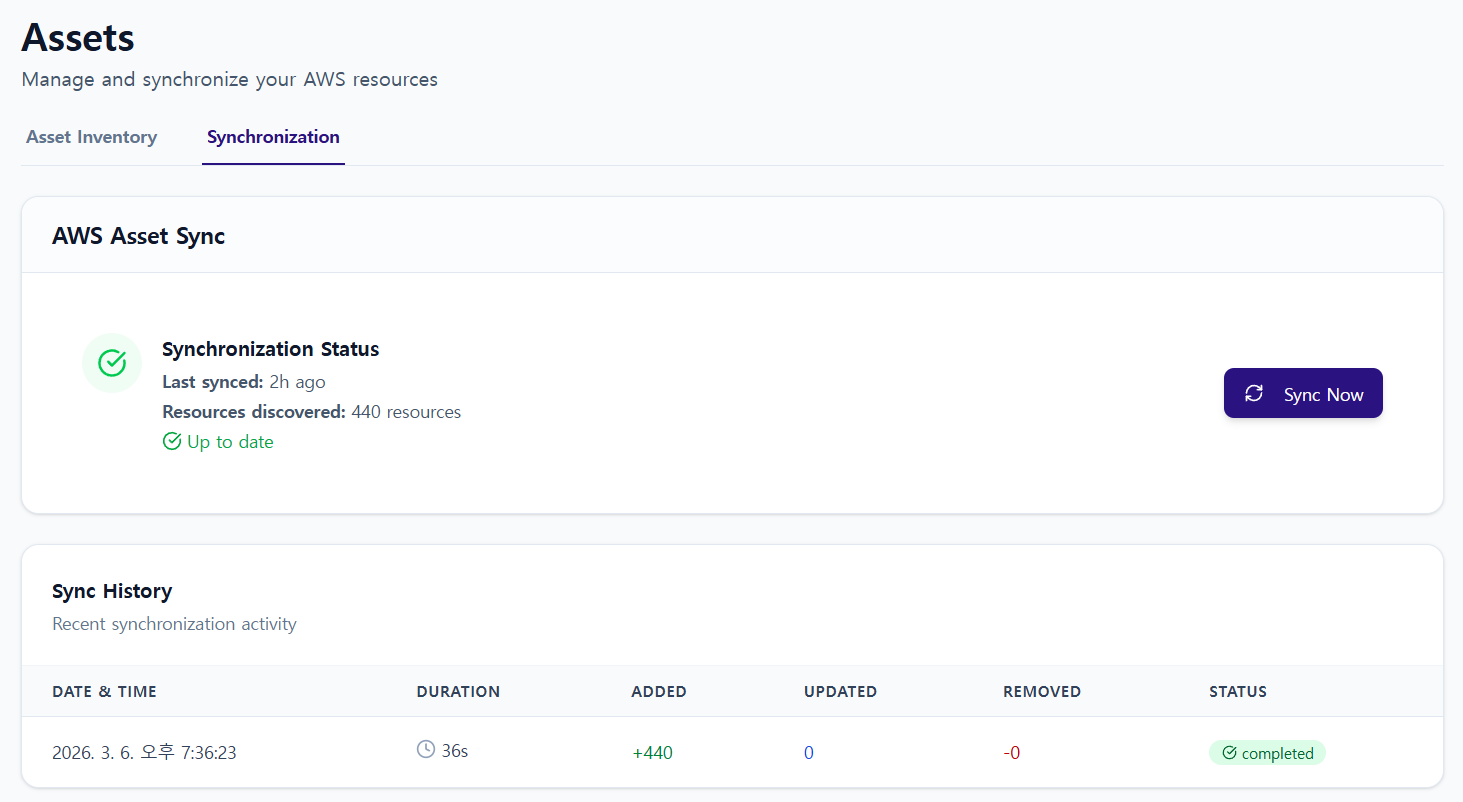
- View the current sync status (most recent sync time, number of discovered resources)
- Run an asset synchronization:
- Navigate to the
Assets → Synchronizationtab. - If needed, select the services or resource types to scan under Sync Scope.
- Click Sync Now.
- Once synchronization completes, the latest asset information is reflected in the
Asset Inventorytab.
- Navigate to the
2.2. Sync History
A table of past synchronization runs.
- Date & Time: When the sync was executed
- Duration: How long the sync took
- Added / Updated / Removed: Changes compared to the previous scan
- Status: Success or failure (e.g.,
completed,failed)
2.3. Sync Scope
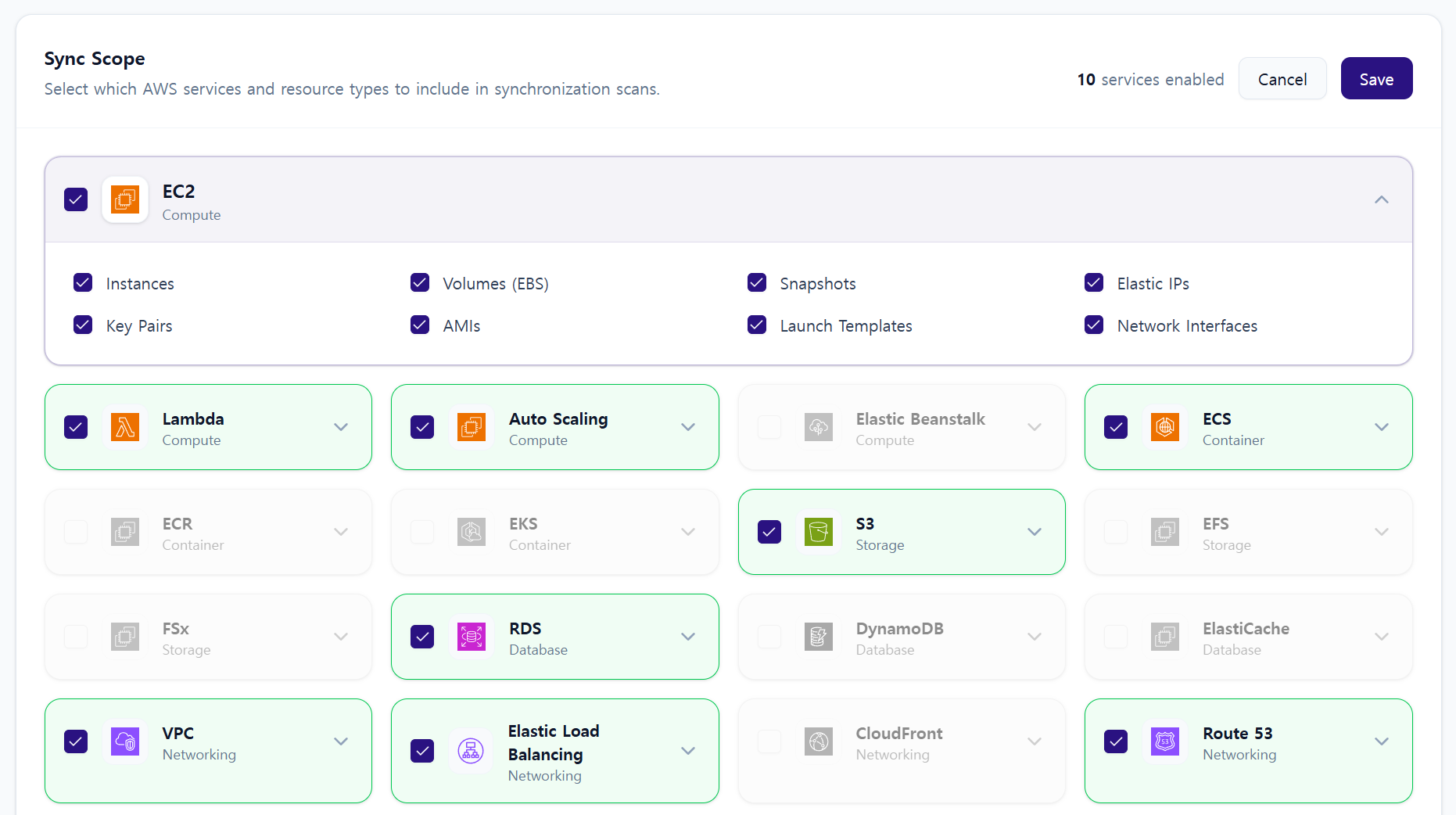
The configuration area where you select which assets to include in the sync.
- Service-level selection: e.g., EC2, Lambda, ECS, S3, RDS, VPC, IAM, etc.
- Resource type-level selection: Specify individual resource types within a selected service
- e.g., for EC2: Instances, Volumes (EBS), Snapshots, AMIs, Elastic IPs, Network Interfaces, etc.
- Only assets within the selected scope are collected.
3. Operational Tips
- Control sync scope at the service/resource type level to collect only the assets you need
- Use the change counts (Added/Updated/Removed) in Sync History to track infrastructure changes
- Keep Asset Inventory up to date to improve the accuracy of risk assessments and reports